Table of Contents
Introduction
Claude Google Drive & Workspace Connector : It’s 4:45 on a Friday, and you need one number: what did the client agree to in that pricing email from three weeks ago? The follow-up proposal is sitting in a Drive folder somewhere, next to six other files that all have “final” in the name. There’s probably a calendar invite too, if you could remember who was even on that call.
So you search Gmail with a term that isn’t quite right, scroll, give up, try Drive instead, open two documents that both look plausible, and eventually land on an answer you’re maybe 80% sure of. Then you copy the relevant paragraph into Claude to help draft the follow-up — because by that point, typing it out is faster than explaining where you found it.
That’s the real cost of keeping your AI assistant separate from the tools where your work actually lives. Not a dramatic failure. Just friction, repeated a dozen times a day, that never shows up on a spreadsheet but quietly eats a chunk of your week.
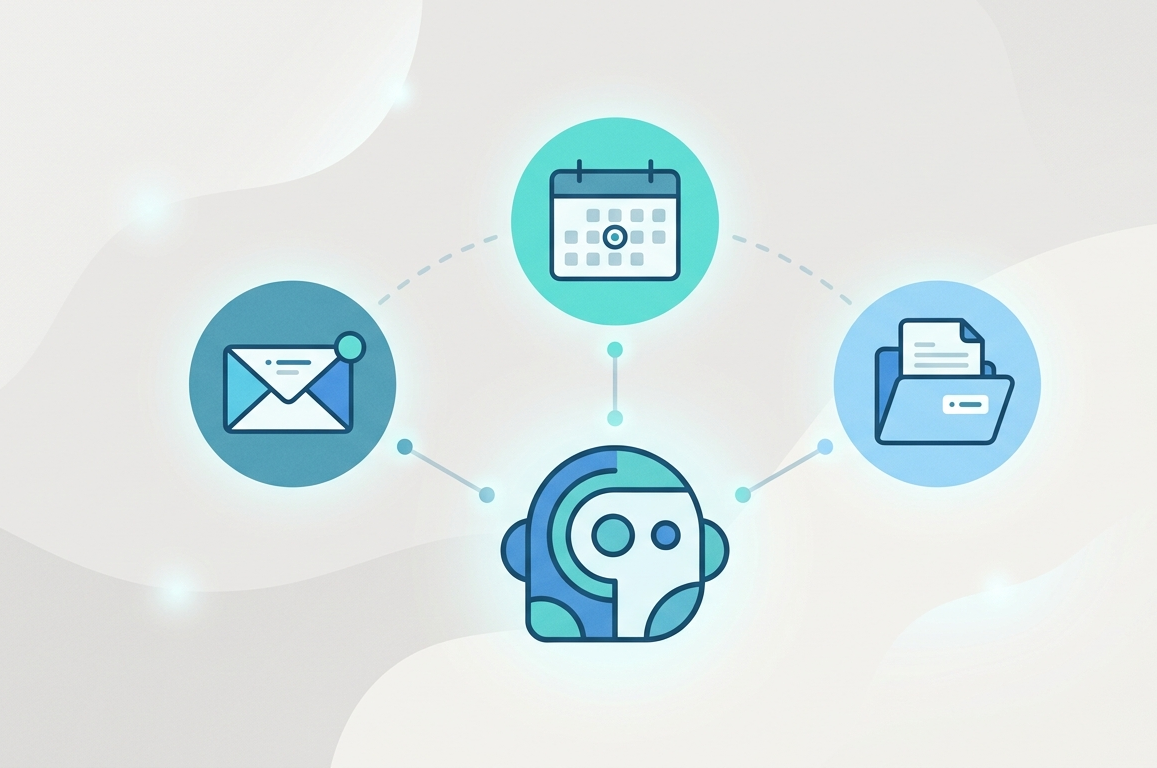
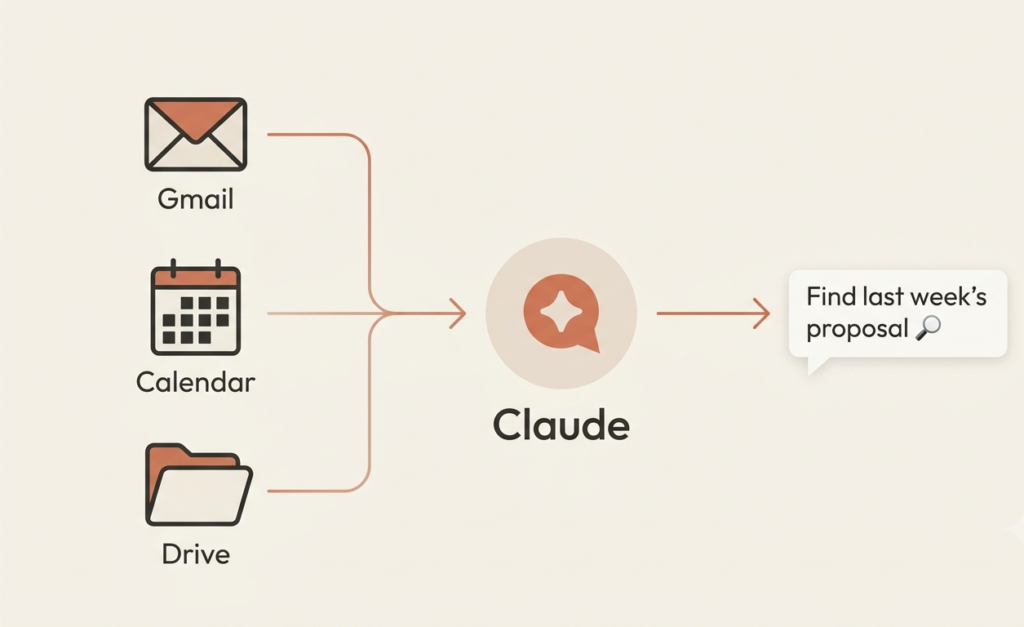
Claude’s Google Workspace connector removes that step. Instead of you doing the searching and the copying, Claude does — reading Gmail threads, checking Calendar, pulling from Drive files, all inside the conversation, with your approval on anything it acts on. The pricing email, the proposal, the meeting invite: all things Claude can find and reason about together, in about the time it takes to ask once.
It isn’t automation in the “runs while you sleep” sense. Nothing here fires on its own when a new email lands. But for the much more common problem — “I need this information right now, and I know it’s in my Google account somewhere” — it closes a gap copy-paste never really solved.
This guide covers what the connector does across Gmail, Calendar, and Drive, how to set it up individually or across a Team or Enterprise account, where it stops short, and the handful of setup issues that trip people up most. It’s also easy to confuse this connector with two adjacent things — we’ll untangle that next.
What Is the Google Workspace Connector?
Strip away the marketing language, and a Claude connector is just a bridge: a defined way for Claude to ask an outside service a question and get a real answer back, instead of guessing from whatever you happened to paste into the chat. The Google Workspace connector points that bridge at three places — Gmail, Google Calendar, and Google Drive — and Anthropic’s current documentation treats all three as one connected family rather than three separate installs.
That framing is fairly recent, and some older guides still describe “the Google Drive connector” as if it stands alone. In practice, connecting your Google account today generally sets up access to your inbox, your schedule, and your files together. You can still toggle each one off individually if you only want Drive, say, without Gmail.
Built and hosted by Anthropic, powered by your Google account
This is an official, first-party connector — not a community MCP server someone built and published, and not something you install through a config file. Anthropic built and hosts it; it authenticates against your Google account through standard OAuth. You’re not handing Claude a permanent copy of your data. You’re authorizing it to ask Google for specific things, on your behalf, when a question needs them.
The distinction matters more than it sounds. A community MCP server might work well, but you’re trusting whoever wrote it, and often hosting or configuring it yourself. The native connector is closer to flipping a switch: authenticate once, and it’s available in every chat, project, and Claude Code session tied to your account.
Where it shows up
The connector isn’t limited to the chat window. Once enabled at claude.ai, it’s available in:
- Claude on web, desktop, and mobile — the main chat interface
- Claude Code — the same tools load automatically once turned on in your browser settings; nothing separate to configure in the terminal
- Claude Cowork — for multi-step or scheduled work touching Gmail, Calendar, or Drive
- The Claude API — for developers building on the same underlying tools
You authenticate in exactly one place, and it follows you everywhere Claude runs on your account.
Note — three things people mix up: There are three different “Claude plus Google Drive” experiences in circulation, and confusing them is probably the single most common source of setup frustration:
- The native Google Workspace connector (what this guide covers) — reads and writes across Gmail, Calendar, and Drive, and works everywhere Claude runs.
- The older “Add from Google Drive” feature — a much smaller tool for pasting a document’s URL or picking a recent file into one chat or project. No search, no Sheets support, no Gmail or Calendar involvement.
- Google’s own remote Drive MCP server — a separate product Google ships and hosts itself, currently in Developer Preview, requiring your own Google Cloud project. Built for developers wanting granular control, not typical Claude users.
If a setup guide you find online doesn’t match what you’re seeing in your own Claude settings, there’s a decent chance it’s describing one of the other two.
Generally available, not experimental
Gmail, Calendar, and Drive access through this connector is fully rolled out — not a toggle buried in a labs menu. It’s available to every individual user, free plan included. The one real gate is organizational: on Team and Enterprise plans, an Owner or Primary Owner has to enable the connector account-wide before anyone can authenticate their own Google account. If you’re on one of those plans and the option isn’t there, that’s almost certainly why — not a bug, and not something you can fix from your own settings.
For everyone else, it’s a short authentication flow. Once connected, Claude treats your Gmail, Calendar, and Drive as sources it can pull from in any conversation, the same way it would treat a file you’d uploaded directly, except this one finds itself.
With the setup picture clear, the more interesting question is what it can actually do once connected. “Access to Gmail, Calendar, and Drive” covers more ground than most people expect — everything from drafting a reply to auditing who can see a sensitive file.
Real-World Use Cases, Business Examples, Developer Examples & Automation
Business
1. Contract term lookup before a renewal call
- Problem: A sales rep has a renewal call in 20 minutes and can’t remember the discount terms buried in a six-month-old email thread.
- Solution: Ask Claude to search Gmail for the thread with that client and summarize the agreed pricing and any conditions attached to it.
- Outcome: The rep walks into the call with exact terms instead of a guess, in under a minute instead of a frantic inbox search.
2. Comparing two versions of a proposal
- Problem: An account manager has “Proposal_v3” and “Proposal_v3_CLIENT_EDITS” and no idea, without a line-by-line read, what changed.
- Solution: Point Claude at both Drive files and ask what actually changed between them.
- Outcome: Claude surfaces the specific edits (scope, pricing, timeline) instead of the manager re-reading both documents cover to cover.
3. Board meeting prep
- Problem: A founder needs a status brief pulling from three places: last quarter’s numbers doc, the Calendar invite listing attendees, and a Gmail thread where a board member raised a concern.
- Solution: Ask Claude to pull the relevant Drive doc, check the Calendar invite for attendees, and find the concern raised by email.
- Outcome: One consolidated brief instead of three separate manual lookups the night before the meeting.
Marketing
4. Campaign asset audit
- Problem: A marketing lead isn’t sure which Drive folder has the final, approved campaign brief versus an earlier draft.
- Solution: Ask Claude to search Drive for matching files and check recent edits to identify the right version.
- Outcome: No more guessing based on filenames like “FINAL_v2_reallyfinal.”
5. Turning meeting notes into a content calendar
- Problem: A content strategist has a Doc full of raw brainstorm notes and needs it structured into a schedule.
- Solution: Ask Claude to read the Doc, draft a content calendar from the ideas discussed, and save the result back to Drive.
- Outcome: A working calendar exists the same day instead of sitting as unstructured notes for a week.
Education
6. Grading feedback consistency check
- Problem: A teacher wants to check whether feedback tone and depth is consistent across a folder of graded essays.
- Solution: Ask Claude to read a sample of the essay documents and summarize the pattern of feedback given.
- Outcome: The teacher catches an unintentional inconsistency before report cards go out.
7. Syllabus and calendar alignment
- Problem: A rescheduled exam date is reflected on the Calendar but not yet updated in the syllabus Doc.
- Solution: Ask Claude to compare Calendar entries against the syllabus document and flag mismatches.
- Outcome: The discrepancy is caught before students show up on the wrong day.
Productivity
8. The “what did I actually agree to” inbox sweep
- Problem: Someone returns from a week off to 400 unread emails and needs to know what commitments were made on their behalf.
- Solution: Ask Claude to search Gmail for the past week and summarize requests, deadlines, or items needing a response.
- Outcome: A prioritized list instead of reading 400 emails in order.
9. Weekly calendar audit
- Problem: A manager suspects their week is over-scheduled but hasn’t looked at the pattern objectively.
- Solution: Ask Claude to review the upcoming week’s Calendar and flag back-to-back blocks or recurring meetings with no clear owner.
- Outcome: The manager sees the pattern in a two-paragraph summary and cancels two meetings that had quietly outlived their purpose.
10. Finding a document you know exists but can’t place
- Problem: “I know I wrote something about this six months ago, I just can’t remember what it was called.”
- Solution: Describe the topic to Claude and ask it to search Drive for anything matching.
- Outcome: The document turns up in seconds instead of a manual scroll through inconsistently named folders.
Developers
11. Pulling spec details into a coding session
- Problem: A developer is implementing a feature, but the requirements live in a Google Doc, not the codebase or ticket.
- Solution: In Claude Code, with the connector enabled at claude.ai, ask Claude to read the spec doc and summarize the requirements relevant to the current file.
- Outcome: Spec context arrives without alt-tabbing to a browser, since the connector’s tools load automatically in Claude Code.
12. Drafting a technical postmortem from scattered sources
- Problem: After an incident, the timeline lives partly in a Gmail thread, partly in a Calendar entry, and partly in a Drive notes doc.
- Solution: Ask Claude to pull from all three and draft a first-pass postmortem timeline.
- Outcome: A structured draft exists within minutes of the incident closing, instead of someone reconstructing the sequence from memory the next day.
Teams
13. New hire context handoff
- Problem: A new team member joins mid-project and needs two months of decisions scattered across Drive docs and email threads.
- Solution: Ask Claude to search both Drive and Gmail for the project name and compile a summary of key decisions and open questions.
- Outcome: A coherent history in one sitting instead of piecing it together from a dozen people’s memories.
14. Coordinating a meeting across a distributed team
- Problem: Finding a time that works across time zones and calendars with mixed visibility.
- Solution: Ask Claude to check mutual availability and propose two or three workable time slots.
- Outcome: A meeting gets scheduled without the usual reply-all availability thread.
Automation
15. A recurring Monday-morning brief (via Cowork scheduled task)
- Problem: A team lead wants a standing summary of the week ahead — meetings, open threads, newly shared Drive files — without asking manually every Monday.
- Solution: Set up a Cowork scheduled task that checks Calendar, scans Gmail for anything awaiting reply, and lists new Drive files, every Monday morning.
- Outcome: A summary is ready Monday morning — worth being precise that this runs on a timer the person set, not in response to anything happening live in Gmail or Drive, since the connector has no event triggers.
Personal Use
16. Untangling a group trip planned by email
- Problem: A group trip has been planned across a dozen scattered emails, a shared budget doc, and a couple of calendar holds, and nobody can find the current state of the plan.
- Solution: Ask Claude to pull together the relevant emails, budget doc, and calendar holds into one current summary.
- Outcome: One clear status update instead of scrolling back through weeks of thread replies.
17. Pre-trip document check
- Problem: Confirming an itinerary matches what’s actually in Drive and Gmail, rather than trusting memory.
- Solution: Ask Claude to find the itinerary document and cross-check it against the confirmation email.
- Outcome: A mismatched flight time is caught the night before instead of at the airport.
Comparison
Comparisons below focus on the Microsoft 365 connector, the closest direct analog (another first-party, Anthropic-hosted productivity-suite connector). Items sourced secondhand from competitor coverage rather than directly verified against Anthropic’s own Microsoft 365 documentation are flagged in the QA notes at the end of this document — recommend a direct check before publishing.
Feature Comparison — Google Workspace vs. Microsoft 365
| Feature | Google Workspace Connector | Microsoft 365 Connector |
|---|---|---|
| Apps covered | Gmail, Google Calendar, Google Drive | Outlook mail, Outlook calendar, Teams, SharePoint, OneDrive |
| Email — read/search | Yes | Yes |
| Email — draft | Yes (draft only, cannot send) | Write tools admin-gated (off by default); when enabled, can send |
| Calendar — read | Yes | Yes |
| Calendar — create/edit | Yes | Yes, if write tools are enabled by admin |
| File search & read | Yes (Docs, Sheets, Slides, PDFs, images, MS Office files) | Yes (SharePoint, OneDrive) |
| File create/edit | Yes (folders, uploads, save Claude-generated files) | Only if admin enables write tools |
| Chat platform coverage | Not applicable | Teams — read-only, no write tools regardless of admin setting |
| Default access level | Read + limited write, on by default once connected | Read-only by default; write is opt-in and admin-controlled |
Pricing & Plan Availability
| Plan Tier | Google Workspace Connector | Microsoft 365 Connector |
|---|---|---|
| Free | Available | Available |
| Pro | Available | Available |
| Max | Available | Available |
| Team | Available, org-wide enablement required | Available, same requirement |
| Enterprise | Available, same requirement | Available, plus separate Microsoft Entra admin consent for write tools |
Ease of Setup
| Step | Google Workspace Connector | Microsoft 365 Connector |
|---|---|---|
| Individual authentication | Single OAuth flow via Google | Single OAuth flow via Microsoft |
| Org-level enablement (Team/Enterprise) | Required | Required |
| Extra admin approval for write access | Not required | Required — separate Entra admin consent, off by default |
| Typical setup time | A few minutes | A few minutes for read access; longer if awaiting write-tool approval |
Verdict: Google Workspace setup is somewhat simpler — there’s no separate write-tools approval gate, since the read/write boundary is fixed by the connector itself rather than configured after the fact by an admin.
Authentication
| Aspect | Google Workspace Connector | Microsoft 365 Connector |
|---|---|---|
| Method | OAuth 2.0 via Google account | OAuth 2.0 via Microsoft account |
| Re-authentication trigger | Session/token expiry, manual disconnect, Google-side revocation | Same pattern |
| Admin trust requirement | Google Workspace admins may need to mark Claude as a trusted third-party app | Microsoft Entra admin consent, particularly for write tools |
| Common failure mode | “Access blocked” until admin trusts the app | Similar admin-trust gating reported for org accounts |
Supported Platforms
| Platform | Google Workspace Connector | Microsoft 365 Connector |
|---|---|---|
| Claude web/desktop/mobile | Yes | Yes |
| Claude Code | Yes (tools load automatically once enabled in browser settings) | Yes |
| Claude Cowork | Yes | Yes |
| Claude API | Yes | Yes |
Automation Capabilities
| Capability | Google Workspace Connector | Microsoft 365 Connector |
|---|---|---|
| Event-based triggers | No | No |
| Scheduled/recurring runs (via Cowork) | Yes | Yes |
| Runs without a human actively watching | Yes, if scheduled | Yes, if scheduled |
| Fires in response to changes in the connected app | No | No |
Neither connector reacts to something happening in Gmail, Calendar, Drive, Outlook, or SharePoint on its own — both are prompt- or schedule-driven, never event-driven. This is a shared architectural limit across Anthropic’s connector system, not something specific to Google.
Enterprise Support
| Aspect | Google Workspace Connector | Microsoft 365 Connector |
|---|---|---|
| Org-wide enablement control | Owner/Primary Owner, Team & Enterprise | Owner/Primary Owner, Team & Enterprise |
| Granular write-access control | Not separately configurable — fixed by the connector | Yes — admin can enable/disable write tools independently of read access |
| Domain trust configuration | Required in Google Workspace Admin console | Required in Microsoft Entra admin center |
| Audit/data retention | Tied to chat lifecycle; deleting a chat deletes its retrieved data | Same pattern documented for Anthropic connectors generally |
Security
| Aspect | Google Workspace Connector | Microsoft 365 Connector |
|---|---|---|
| Encryption at rest & in transit | Yes | Yes |
| Permission mirroring | Yes — can’t access anything you don’t already have access to | Same principle |
| Model training on connector data | Excluded by default; consumer-plan copy/paste caveat applies | Same caveat pattern |
| Data storage location | Anthropic servers, tied to the associated chat | Same |
Best Use Cases
| Scenario | Better Fit |
|---|---|
| Team lives in Gmail, Google Calendar, Google Drive | Google Workspace Connector |
| Team lives in Outlook, Teams, SharePoint, OneDrive | Microsoft 365 Connector |
| Organization wants write access off by default with explicit admin opt-in | Microsoft 365 Connector |
| Organization wants full read+write as soon as the connector is turned on | Google Workspace Connector |
| Need Claude to reference team chat alongside files | Neither — that’s the separate Slack connector |
| Need automation that fires when something happens in the inbox or Drive | Neither — use a scheduled Cowork task for recurring runs; true event triggers aren’t available in either |
FAQs
1. What is the Claude Google Drive & Workspace Connector? It’s an official, Anthropic-hosted connector that links your Gmail, Google Calendar, and Google Drive to Claude, so it can search, read, and take limited actions across all three during a conversation.
2. Is the Claude Google Drive & Workspace Connector free? Yes — available on all Claude plans, including the free tier. You don’t pay separately for it.
3. Do I need a Google Workspace business account, or does personal Gmail work? A personal Google account works fine. Business accounts work too, but on Team and Enterprise plans, an admin has to enable the connector at the org level first.
4. Can Claude send emails for me? No. Claude can search, read, and draft emails in Gmail, but it cannot send them.
5. Why does Google’s permission screen mention email-sending access if Claude can’t send? Google’s standard OAuth consent screen lists the broader Gmail scope, but Anthropic states the send function isn’t enabled in Claude’s use of it — Claude only reads and drafts, with your explicit approval on each action.
6. Can Claude read attachments in my emails? No. Claude can access attachment metadata but not the actual attachment content.
7. Does Claude see images inside my Google Docs or Slides? No. Claude extracts text content only — images, comments, and suggestions embedded in documents aren’t processed.
8. Can Claude edit or delete files in my Drive? Claude can create folders, upload files, and save Claude-generated files to Drive. It does not edit existing Docs/Sheets/Slides content directly the way it edits its own generated files.
9. Does the connector convert Excel or PowerPoint files into Google Sheets or Slides? This isn’t a documented capability — the connector reads Office files but doesn’t perform format conversion as an action.
10. What happens if I update a Google Doc after adding it to a chat? The document stays synced. Claude works from the most current version, not a frozen snapshot from when you added it.
11. Can I add multiple Drive files to one conversation? Yes — the real limit is the conversation’s context window, not a fixed file count.
12. What happens if I lose access to a document I previously added to a chat? You won’t be able to view its contents anymore in that conversation, though the rest of the conversation history stays intact.
13. Does Claude have access to shared calendars, not just my own? Yes — Claude can view any calendars you already have access to, mirroring your existing Google permissions.
14. Can Claude schedule a meeting and invite people automatically? Claude can create events and manage attendee lists, but every action requires your explicit approval before it happens.
15. Why can’t I connect Google Workspace on my company’s Team or Enterprise plan? An Owner or Primary Owner needs to enable the connector organization-wide first.
16. I’m getting an access-blocked message referencing my institution’s admin — what now? Your Google Workspace admin needs to mark Claude as a trusted OAuth app in the Google Admin console’s third-party app access settings, then allow a few minutes for the change to take effect.
17. How do I reconnect my Google account if I’m seeing sync errors? Go to Customize → Connectors in Claude, disconnect the Google connector, then re-trigger the OAuth flow. If issues persist, also check your connected apps under your Google account’s security settings.
18. Does Anthropic train its models on my Gmail, Drive, or Calendar data? Not by default. On consumer plans where you’ve opted into model training, anything you copy/paste from connector data into a conversation can be used for training — the connector data itself isn’t harvested directly.
19. Where is my connector data stored, and how long is it kept? On Anthropic’s servers, encrypted at rest and in transit, retained alongside the chat it was used in. Deleting the chat deletes the associated retrieved data.
20. Can my organization turn off Google Workspace connectors entirely? Yes. Owners and Primary Owners can disable them org-wide from Organization settings. Individual users can also toggle off specific tools (Gmail, Calendar, or Drive) independently.
21. Is this the same thing as the “Add from Google Drive” button in chats and projects? No — that’s a smaller, separate feature limited to pasting a document URL or selecting a recent file for one chat or project.
22. Is this the same as Google’s own Drive MCP server? No. Google ships its own separate remote Drive MCP server, currently in Developer Preview, requiring your own Google Cloud project — aimed at developers wanting granular control.
23. Can I use the Google Workspace connector inside Claude Code? Yes. Once enabled at claude.ai under Settings → Connectors, the same tools load automatically in Claude Code sessions.
24. Will Claude automatically act when I receive a new email or calendar invite? No. Nothing fires on an event in Gmail, Calendar, or Drive — only on a direct prompt, or a Cowork scheduled task running on a timer you’ve set.
25. Can Claude tell me who has access to a file in my Drive? Yes — viewing file permissions is a documented capability, useful for checking who can see or edit a file before sharing it further.
References :